
Workspaces you switch in one click
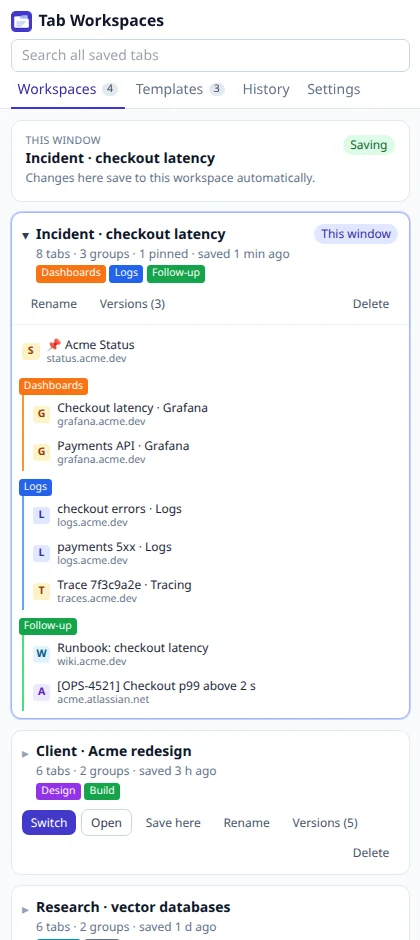
Save a window, with its tab groups and pinned tabs, under a name. Switch replaces the window you are in; Open adds a new one. One window per project, client or incident.
Chrome extension · free · no account
Tab Workspaces saves each project, client or incident as a window that keeps itself up to date, backs up every open window automatically, and opens your dashboards and logs with the request ID and time range already filled in.
Features
The things people complain about most in other tab managers are lost sessions and lost tabs. Tab Workspaces is built around never letting that happen.
Save a window, with its tab groups and pinned tabs, under a name. Switch replaces the window you are in; Open adds a new one. One window per project, client or incident.
While a workspace is open, every tab you open, close, move or group is saved to it. Earlier versions are kept, so an accidental change is one click from undone.
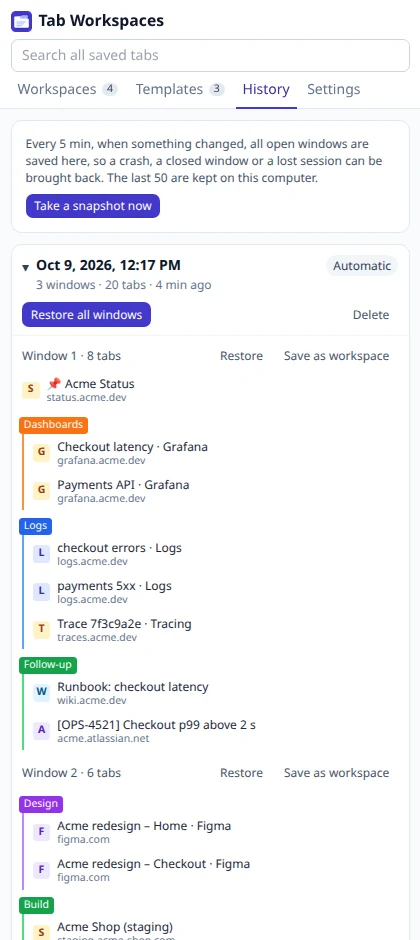
Closing a window or quitting Chrome never empties a workspace. Every few minutes all open windows are backed up, so a crash or a lost session comes back in one click.
Links with {{requestId}}, {{customer}} or a time range open as one named tab group with the values filled in: your incident dashboards, a client’s tools, a date’s reports.
Restored tabs appear in the tab strip but load only when you click them, so a 200-tab research workspace opens in seconds and uses almost no memory.
No account, no server, no tracking. Workspaces, templates and backups stay in your browser on your computer, and you can export them any time.
How it works
Tab Workspaces lives in Chrome’s side panel, next to the page you’re on.
Name it, and you are done: tabs, tab groups with their colours, pinned tabs and the active tab are saved. From then on, changes in that window save automatically.
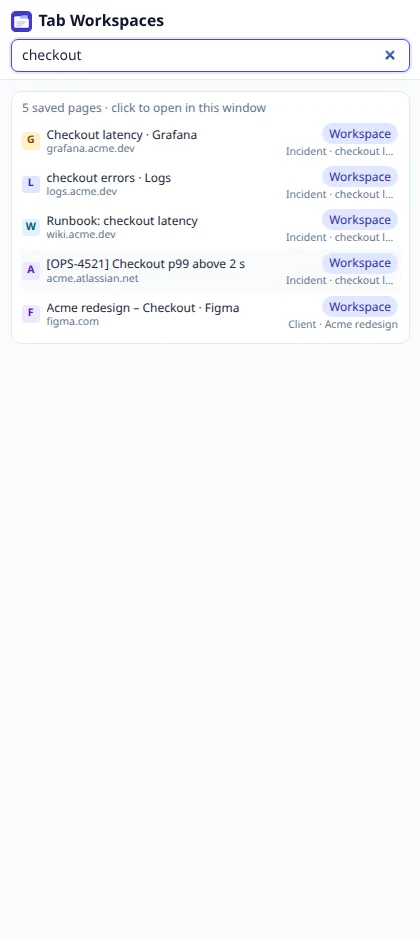
Type the request ID and the time once. Every link opens with the values filled in, as one tab group named “Incident 7f3c9a2e”, next to what you were doing.
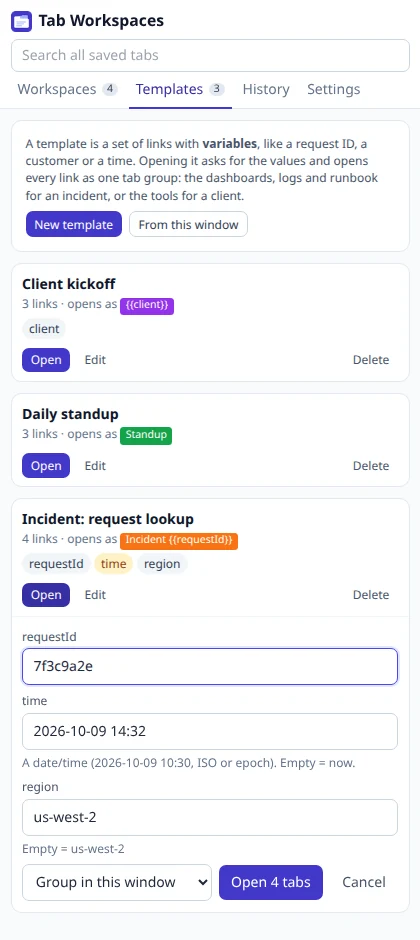
One search box covers every page in your workspaces, templates and backups. Click a result to open it, or restore a whole window from History.
Templates
When the pager goes off, you open the same six dashboards, log searches and runbooks every time, each with a different request ID and time range. A template does it for you.
Template · Incident: request lookup
History
Tab Workspaces keeps three layers of safety, so the one window you needed is never gone.
Switching is easy
Import what you saved in other tab managers, and export everything in formats any browser understands.
Privacy
Your tabs say a lot about you and your work. Tab Workspaces keeps them in your browser, on your computer, and asks only for what a tab manager needs.
| Permission | Why it’s needed |
|---|---|
| Tabs | See the address and title of the tabs it saves. Chrome words this as “read your browsing history”; Tab Workspaces never reads Chrome’s history list and sends nothing anywhere. |
| Tab groups | Save and recreate your tab groups with their names and colours. |
| Storage | Keep your workspaces, templates and backups on your computer. |
| Side panel | Show Tab Workspaces next to the page you are on. |
| Alarms | Take a backup every few minutes. |
Not requested: your browsing history list, bookmarks, or access to the pages you visit. Read the privacy policy.
Pricing
No credit card, no account. Sync and team features are on the way.
Free
$0
everything on your computer
Pro & Team
Coming soon
everything in Free, plus
Pro
Team
FAQ
Yes. Everything it does today is free, with no account and no limits. Paid plans for encrypted sync between computers and shared team libraries are planned; the local features stay free.
That is how Chrome describes the “tabs” permission, which any tab manager needs to see the address and title of the tabs it saves. Tab Workspaces does not read Chrome’s history list, has no access to page contents, and sends nothing anywhere.
In Chrome’s storage for the extension, on your computer. There is no Tab Workspaces server or account. Uninstalling removes the data, so download a backup first if you want to keep it.
Closing a window or quitting Chrome never empties a workspace: its tabs stay saved. On top of that, every few minutes all open windows are backed up to History, where you can restore everything, one window, or save a window as a workspace.
No. Restored tabs are “unloaded”: they show in the tab strip but load only when you click them, so even very large workspaces open in seconds and use little memory. You can turn this off in Settings.
A template is a set of links with variables. When you open it, Tab Workspaces asks for the values (a request ID, a customer, a date or time), fills them into every link and opens them all as one named, coloured tab group. Times can be relative, like 15 minutes before an incident.
Yes. In Settings → Import, choose the file you exported from Session Buddy or Toby, or paste OneTab’s “Export URLs” text. Each list or window becomes a workspace. Any file or text with links works too.
Not yet. Today you can download a backup on one computer and import it on another. End-to-end encrypted sync is the next feature on the way.
Yes. Group names, colours and collapsed groups are saved and restored exactly, and templates open as tab groups.
Alt+Shift+W opens the panel and Alt+Shift+S saves the current window. You can change them at chrome://extensions/shortcuts.
One window per project, saved as you go, and back in one click.